
adversiment
Nearly 60% of knowledge workers lose up to two hours daily due to poor organization. This is a big gap that productivity apps can quickly fix.
This guide helps U.S. readers find the best productivity apps. They make task management and time tracking easier. This way, you can do more with less stress.
We’ll look at task managers, note-taking, time-tracking, and more. Each section will highlight real apps and their features. You’ll also learn about cross-platform syncing and privacy.
Modern apps use artificial intelligence to offer smart suggestions and automated workflows. They change how we work. You’ll get tips on saving time, reducing mental clutter, and improving focus.
Use the quick links below to jump to what interests you most. Or, read straight through for a quick plan to make your daily routine better with today’s best productivity apps.
Understanding Productivity Apps and Their Benefits
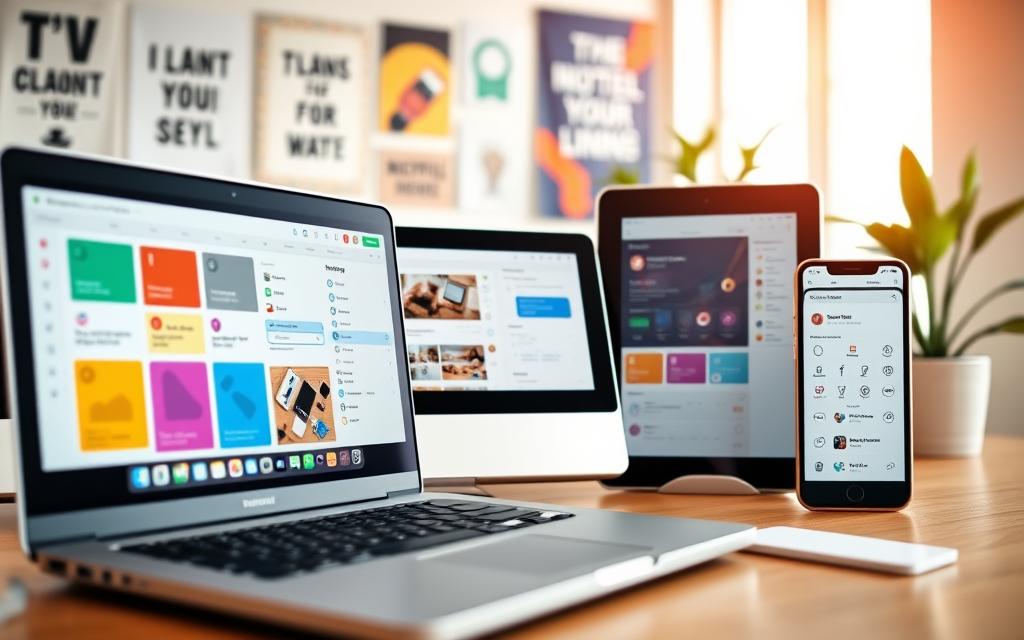
Productivity apps help people and teams manage tasks, time, and communication. They include tools like Trello and Todoist for task management. Evernote and Notion are great for note-taking, while Toggl tracks time.
Apps like Slack and Microsoft Teams help teams work together. Modern apps use AI and natural language processing. This makes searching, tagging, and voice input smarter.
What Are Productivity Apps?
Productivity apps are software that helps organize work. They keep tasks, notes, calendars, and messages in one place. This saves time by avoiding the need to switch between many tools.
There are many types of productivity apps. Trello and Todoist help manage tasks. Evernote and Notion are for note-taking. Toggl tracks time, and Slack and Microsoft Teams keep teams connected.
How They Enhance Daily Life
These tools make it easier to prioritize and focus. When everything is in one place, you can work more efficiently.
Automation through Zapier and IFTTT saves time by handling repetitive tasks. AI features suggest better schedules and help plan. This reduces the need for manual planning.
Apps with machine learning can understand your workflow. They offer smart suggestions and reminders. This helps you stay focused and make better decisions during busy times.
Key Features to Look For
Look for apps that work across devices and offer offline access. This ensures work continues without interruptions. Integrations with other tools make workflows smoother and reduce duplication.
Good search features, powered by natural language processing, make finding information fast. Task hierarchies, tagging, reminders, and clear notifications help stay organized. Reporting and analytics, driven by machine learning, show where time is wasted.
Automation saves time on repetitive tasks. Security and privacy features, like encryption and two-factor authentication, protect your data.
Popular Categories of Productivity Apps
Choosing the right productivity apps is key to matching tools to your needs. Knowing your options saves time and prevents app overload. Here are three main categories that most users find useful for their daily tasks.
Task Management Apps
Task management tools help keep teams on track by organizing tasks and deadlines. They often include boards, lists, due dates, and task dependencies.
These apps can connect with Google Calendar and Slack. This makes it easy to keep schedules and conversations in sync. AI can even help prioritize tasks and predict when things are due based on past habits.
Note-Taking Apps
Note-taking apps are great for jotting down ideas, meeting notes, and research. They offer features like rich text, attachments, web clipping, full-text search, and reusable templates.
Apps like Notion and Evernote stand out with their flexible pages and strong search capabilities. They use natural language processing and cognitive computing to make searching easier and summarize content quickly.
Time-Tracking Apps
Time-tracking apps help you see how you spend your hours. They’re useful for boosting productivity or for billing clients. They have features like manual timers, automatic tracking, detailed reports, and project billing.
Apps like RescueTime and Toggl automatically track your time and offer insights. Machine learning helps sort activities into productive and distracting categories. They also integrate with invoicing and project tools for smooth workflows and automation.
Best Task Management Apps for 2023
Task management apps 2023 have tools for everyone. Choose one that fits your needs, team size, and automation needs. Here are three top picks for simple lists to complex projects.
Trello
Trello uses a board-and-card system that’s easy to use for personal projects and small teams. It has lists, labels, and checklists for quick tracking.
Power-Ups add features like calendar views and integrations. Butler automation saves time with rules and buttons. Trello works well on mobile and web for various tasks.
Todoist
Todoist is a fast, cross-platform app for quick task entry. It uses natural language for adding tasks with dates and times.
It has priority levels, recurring tasks, and project labels. Integrations with Google Calendar and Zapier expand its reach. AI helps prioritize tasks for better focus.
Asana
Asana is packed with features for teams handling big projects. It lets you assign tasks, set dependencies, and view timelines and workloads.
Reporting tools help track progress. Asana works well with Slack, Microsoft Teams, and Google Workspace. It’s great for product, marketing, and operations teams.
| App | Best For | Key Features | Automation & Integrations |
|---|---|---|---|
| Trello | Visual workflows, small teams | Boards, cards, lists, labels, checklists | Butler automation, Power-Ups, calendar sync |
| Todoist | Fast task entry, personal productivity | Natural language input, priorities, recurring tasks | Google Calendar, Zapier, productivity tracking |
| Asana | Complex projects, cross-functional teams | Timelines, dependencies, workload views, reporting | Slack, Microsoft Teams, Google Workspace integrations |
Top Note-Taking Apps to Improve Efficiency
Choosing the right note-taking apps can change how you capture ideas and manage projects. This guide compares three top apps for different needs. They range from quick notes to detailed databases and freehand canvases.
Evernote
Evernote is known for its versatility. It has features like web clipping, notebooks, tags, and document scanning. Its search is smart, using OCR for images and PDFs. This makes it easy to turn receipts and printed notes into digital files.
Evernote also connects well with Google Drive and Slack. This integration helps you use it in your current workflows.
Notion
Notion is a flexible workspace that combines notes, databases, kanban boards, and wikis. It has templates and relational databases for managing knowledge. Teams can work together in real time, add media, and use the Notion API for automation.
Microsoft OneNote
Microsoft OneNote uses a free-form canvas for handwritten notes, drawings, and multimedia. Syncing through OneDrive keeps your content on all devices. It’s great for teams with Microsoft 365 and Teams integration.
OneNote also supports Surface stylus for natural pen-based workflows.
All three apps are getting better with AI and natural language processing. Evernote is best for clipping and scan search. Notion is great for databases and team wikis. Microsoft OneNote is ideal for freehand capture and Microsoft ecosystem integration.
Time-Tracking Apps to Maximize Your Hours
It’s crucial to know where your time goes for better focus and billing. Time-tracking apps help freelancers and teams track hours, find productivity gaps, and make reports. Choose a tool that matches your workflow, whether you like manual timers, automatic tracking, or simple timers with strong integrations.
Toggl Track is great for those who want a quick and easy way to log work. With one-click timers, starting and stopping is a breeze. It also tracks projects and clients, making it easy to keep billable time organized.
Dashboards show trends and let managers dive into reports. It integrates well with Asana and Trello, making it easy to move from planning to tracking. Its simple design makes Toggl a favorite among freelancers and small teams.
Clockify is perfect for teams on a tight budget. Its free version has timers, manual entries, project budgeting, and timesheet exports. Managers can set up basic reporting and export data for invoices.
The interface is easy to use, making it great for teams. Clockify is ideal for groups that need reliable tracking and clear timesheet exports without spending more.
RescueTime uses automatic background monitoring to track your time. It categorizes websites and apps to give detailed productivity reports. FocusTime blocks distractions for uninterrupted work blocks.
Machine learning time analytics improve categorization as you use it. RescueTime helps you understand your digital habits and find focused hours through data-driven suggestions.
Each app has its own strengths for productivity and work routines. Toggl is good for quick manual tracking and integrations. Clockify is budget-friendly for teams. RescueTime offers automation and advanced analytics to uncover hidden patterns.
Choose the features that best fit your needs to maximize your time-tracking workflow.
Collaboration Tools for Teams
Teams that work well together choose tools that fit their habits. This guide compares three leading platforms. Managers and team members can pick what matches their workflow. Each option blends messaging, meetings, and integrations with productivity apps to keep work moving.
Slack uses channel-based messaging to keep conversations organized. Channels, direct messages, and threaded replies make it easy to follow topics. File sharing is fast and searchable conversation history helps teams find past decisions.
Slack links with Google Drive, Trello, and other productivity apps to centralize work. Built-in workflows and bots enable automation for routine tasks. Natural language processing powers search and smart suggestions so people find messages and files faster.
Microsoft Teams acts as a collaboration hub that blends chat, video meetings, and file storage. Deep integration with Microsoft 365 apps such as Word and Excel gives a familiar environment for many organizations. Teams includes enterprise-grade security and compliance controls.
Meeting transcription and recorded sessions make it easier to capture outcomes. Integration with SharePoint and Outlook streamlines document collaboration and scheduling. Automation through Power Automate expands what teams can do without manual steps.
Zoom focuses on high-quality video and audio for remote meetings. Features such as breakout rooms, webinars, and recording support varied meeting formats. Built-in transcription and third-party add-ons offer AI meeting tools that produce automated transcripts and summaries.
Zoom connects with calendars and other collaboration platforms to reduce friction. Teams often pair Zoom with chat-first tools when they need a reliable video layer. AI meeting tools and integrations can automate follow-ups and extract action items.
| Feature | Slack | Microsoft Teams | Zoom |
|---|---|---|---|
| Primary Strength | Channel messaging and searchable history | Integrated Microsoft 365 collaboration | High-quality video conferencing |
| File Collaboration | Fast sharing; links to Google Drive and Dropbox | Native SharePoint and OneDrive support | Recording storage; integrates with cloud drives |
| Meeting Features | Voice/video via apps and integrations | Built-in meetings with transcription | Breakouts, webinars, cloud recording |
| Automation | Workflows and bots for routine tasks | Power Automate and policy-driven flows | Third-party automation via integrations |
| AI & NLP | Natural language processing for search and suggestions | Transcription plus Microsoft AI services | AI meeting tools for transcripts and summaries |
| Best For | Fast-paced teams that favor messaging | Enterprises using Microsoft 365 | Organizations that prioritize video-first meetings |
Habit-Tracking Apps to Boost Productivity
Small habits can lead to big changes. Habit-tracking apps help users build routines and track their progress. They make it easy to stay on track and work well with other apps.
Here are three top picks for different needs. Each app has its own design, reminders, and integrations. They make it easy to keep up with habits.
Habitica
Habitica turns daily tasks into a game. You create an avatar and earn rewards for completing tasks. Missing tasks can lead to penalties, making it fun to keep up streaks.
Habitica is great for those who like points, levels, and being part of a community. It connects with other apps for more automation in your routine.
Streaks
Streaks is all about simplicity and keeping momentum. It’s designed for iOS and makes tracking habits easy with just a tap. It also sends reminders to keep you on track.
Streaks works well with the Health app for tracking fitness. It’s perfect for those who prefer a clean design and seamless iPhone integration.
Loop Habit Tracker
Loop Habit Tracker is open-source and works on Android. It offers flexible scheduling and detailed habit scores. It focuses on data-driven habit building.
Loop Habit Tracker is great for those who value accurate streak tracking and reminders. It’s ideal for those who want a straightforward approach to habit science.
| App | Best For | Key Feature | Platform |
|---|---|---|---|
| Habitica | Gamified routine builders | RPG-style rewards, quests, party accountability | iOS, Android, Web |
| Streaks | Simple habit momentum | Streak emphasis, Health app integration, clean UI | iOS |
| Loop Habit Tracker | Data-driven habit tracking | Flexible scheduling, habit scores, open-source | Android |
Automation Apps to Save Time
Automation apps reduce manual work and free up time for important tasks. They are great for small teams and solo creators. These tools connect services, move data, and trigger actions without needing to write code.
This makes workflows clearer and reduces repetitive tasks.
Zapier
Zapier is a top automation platform that connects thousands of apps. It automates tasks like creating tasks from form responses, syncing CRM contacts, or saving email attachments to cloud storage. It also handles complex scenarios with multi-step Zaps and conditional logic.
This makes it perfect for marketing, sales, and operations.
IFTTT
IFTTT (If This Then That) is for those who want simple applets for everyday tasks. It connects apps and smart devices to automate social posts, trigger smart home scenes, or save photos to cloud folders. IFTTT is great for IoT and has wide compatibility, making it easy for non-tech users to start automating.
Automate.io
Automate.io has a drag-and-drop builder for business workflows, CRM syncing, and marketing automation. It lets you create bots that map fields between apps and supports big integrations. It’s a middle ground between IFTTT and complex platforms, perfect for teams needing strong productivity apps without needing to be tech experts.
Choosing between Zapier, IFTTT, and Automate.io depends on your needs. Zapier is best for complex, multi-step processes. IFTTT is great for simple tasks and smart devices. Automate.io is ideal for businesses needing a visual, business-focused approach to AI automation and deeper CRM mapping.
Calendar Apps to Organize Your Schedule
Good calendar apps can make your week clear and organized. They sync across devices, suggest times, and automate scheduling. This saves time and reduces stress. Here are three top options for personal and work use.
Google Calendar
Google Calendar is great for planning across different devices. It’s easy to create events and share them. You can use multiple calendars, color-code, and view layers for simple planning.
It works well with Google Workspace and many other services. AI scheduling suggests meeting times and automates reminders. You can also add travel and team coordination features.
Apple Calendar
Apple Calendar syncs smoothly across iPhone, iPad, and Mac with iCloud. You can type in events like “Lunch with Sarah Friday” and see them instantly.
It’s designed for Apple users, with Siri for quick event creation. Privacy is a big focus, making it a top choice for Apple fans.
Microsoft Outlook Calendar
Microsoft Outlook Calendar is perfect for business use in Microsoft 365. It has strong meeting scheduling, room booking, and integration with Teams and Exchange.
The scheduling assistant finds common free times. It also has policies and permissions for corporate workflows. Automation links Outlook to email, tasks, and conferencing tools for team planning.
The best calendar app depends on your needs and ecosystem. Google Calendar is great for teams across platforms. Apple Calendar is ideal for Apple device users who value privacy. Microsoft Outlook Calendar is best for corporate scheduling and resource management.
| Feature | Google Calendar | Apple Calendar | Microsoft Outlook Calendar |
|---|---|---|---|
| Platform Reach | Web, Android, iOS, Desktop | iPhone, iPad, Mac | Windows, Web, iOS, Android |
| Best For | Cross-platform teams and integrations | Apple device users valuing privacy | Enterprise scheduling and room booking |
| Smart Scheduling | AI scheduling suggestions and add-ons | Natural language entry and Siri | Scheduling assistant and Exchange support |
| Automation | Strong third-party automation options | iCloud-driven sync and shortcuts | Workflow automation within Microsoft 365 |
| Privacy Focus | Standard Google privacy controls | High emphasis on user privacy | Enterprise-grade controls and policies |
Mind Mapping Apps for Better Idea Management
Mind mapping apps help organize thoughts into clear plans. They make brainstorming faster and project planning simpler. They also help teams capture ideas quickly. These tools work well with other apps and new tech like AI and cognitive computing to improve creative work.
XMind is a strong tool for mind mapping. It supports many diagram types, like classic mind maps and fishbone charts. You can also turn maps into slides for presentations. It has export options for sharing and saving maps.
Use XMind for brainstorming, planning projects, and organizing notes into one visual space.
MindMeister is great for cloud-based, team mapping. It allows real-time editing so teams can work together. You can export presentations and link it with MeisterTask for easy task management.
Choose MindMeister for team brainstorming, capturing workshop ideas, and smooth project handoff.
Coggle is simple and looks good, perfect for quick ideas and sharing. It supports real-time collaboration and keeps track of changes. It’s easy to add links and images, great for fast brainstorming and note-taking.
Use these apps with other productivity tools for a smooth idea-to-action flow. Add AI or cognitive computing for pattern detection, clustering, or automated suggestions to find hidden connections in your maps.
- Best for structured diagrams: XMind
- Best for team workshopping: MindMeister
- Best for quick ideation: Coggle
Apps for Focus and Concentration
Good focus starts with the right tools. Here are some top focus apps and concentration tools. They help you stay focused and avoid distractions. Each one explains how it works and who it’s best for.
Forest turns staying off your phone into a game. It grows a virtual tree as you focus. This makes short sessions feel rewarding. You get rewards for staying focused, helping you build good habits.
Focus@Will combines music and neuroscience to improve focus. It uses music that research shows boosts concentration. You can even get music that fits your focus style, thanks to machine learning.
Cold Turkey blocks websites and apps on your computer. It’s great for deep work and writing. Its strict blocks help you stay focused for long periods.
These apps meet different needs. Forest is good for phone users who want to build habits. Focus@Will is for those who focus better with music. Cold Turkey is best for writers and professionals who need to stay focused on their computer.
- Try Forest for short, gamified timers that discourage phone checking.
- Use Focus@Will when you want research-backed music and adaptive recommendations.
- Pick Cold Turkey to enforce strong blocks during intensive work periods.
Tips for Choosing the Right Productivity App
Choosing the right tool begins with understanding your daily workflow. First, decide if you need the app for yourself or your team. Think about the integrations you need, like email or Google Calendar. Also, consider the platforms you use, such as iOS or Android.
Don’t forget to think about your budget and data privacy. Look for apps that offer AI features like smart suggestions. These can save you a lot of time.
Assess Your Needs
Start by mapping out your current tasks. This will help you see what gaps an app can fill. If you need automation between services, choose apps that support Zapier or IFTTT.
For teams, make sure the app has role permissions and export options. If you’re interested in new technology, check if the app uses deep learning or neural networks. These can improve recommendations and help prioritize tasks.
Try Free Trials
Use free trials to test how the app works in real life. Try to mirror your typical workload during the trial. Test integrations from start to finish and check how well it syncs on mobile and desktop.
See how much time you can save and note any issues. A short test can show if the app’s features really help in your daily tasks.
Read User Reviews
Check app store ratings and review sites like G2 and Capterra. They can tell you about the app’s reliability and customer support. Look for recent reviews that talk about updates, AI features, and automation.
Choose apps with scalable pricing and clear data export policies. Consider combining tools to create a stack that meets your needs. For example, use Todoist with Toggl and Google Calendar.